Tuesday, June 28, 2011

Data Collection SQL Server 2008

Introduction

Disk usage, Query Statistics and Server Activity are most important information for helping administrators to identify SQL Server performance problems. SQL Server 2008 has a feature of Data Collection that can gather information about Disk usage, Query Statistics and Server Activity and take a chance for view these result by set of specific reports.

Actually, Data Collection creates integration services package that is used to gather data and then put it to specific database (database whcih created by data collection configuration.) this database sometimes called Managment Data Warehouse (MDW).
Data Collection also create a set of jobs for gathering required information and add new tables also in MSDB database to save logging and other configuration information.

Benefits of Data Collection

Central Data Repository : One database store all information related with performance.

Selected data that needed to collect : It can select specific collection set to collect and upload to database warehouse.

Display Performance Reports : View specific report for speciafic field of performance (Disk usage, Query Statistics and Server Activity)
 
Configuration Data Collection

Before starting configuration of data collection, Sart SQL Server Agent service. then goto Managment folder in SQL Server instance and then right click on Data collection icon .

from the list of Data Collection select Configure Managment Data Warehouse.


Click the Next button


before working with Data Collection, it must be configured first by choosing the first option.


This form need the database that will store Data Collection information (MDW), select one of listed database or create new one.


Click New Button to create new database (if needed)


What is the logins that need to maped in MDW database that is specified in prevous step . select logins from the first grid and map it to suitable database role membership in the second grid.


Now the configuration of Data Collection Successfully finished .


Set Up Data Collection

It is now the time of set up Data Collection to enable it work . To do that return again to Data Collection icon in the Managment folder in you instance server. Right click on it select Configure Managment Data Warehouse .

in the Select Configuration Task form select the second option to set up Data collection .


Specify the previous database created for Data Collection (MDW database). the collection data by default cached to Temp directory before upload it to MDW database. if needed to change temp directory, type the alternative path in Cache direcroty field that shown below.


after review all steps click Finish to start set up Data Collection.


Now Data Collection ready to Collect and upload result to created MDW database that let to administrator to review result by reports of Data Collection .

The results of set up data collection .

the set up od Data Collection create three Collection Sets named (Disk usage, Query Statistics and Server Activity) each of them collect and upload specific information in MDW database .

Note that all collection sets start by default, it can be stoped by right click on specific collection set and then select Stop data Collection Set option.

It can specify also certain data collection set to do it's collection and upload job by option of Collect and Upload Now .


Also note the creation of the following jobs in SQL Server Agent. Each of collection set has specific jobs for collect and upload data.


Reports of Data Collection

Right Click on Data Collection, Select Report > Managment Data Warehouse. then the list of report will show three kinds of report (Disk usage, Query Statistics, Server Activity)


Disk usage

Query Statistics

Server Activity

Monday, June 27, 2011

Using Transparent Data Encryption Feature of SQL Server 2008

The following example describe how to protect you database backup by using Transparent Data Encryption

-- create database
create database mydb1
go
use mydb1
go

-- create table mytable in database mydb1
create table mytable
(
id int primary key,
nam char(10)
)

-- insert record to table
insert into mytable values (1,'Mohamed')


-- make a backup for database mydb1
backup database mydb1 to disk ='c:\myback.bak'

goto file myback.bak that is found in 'c:\', open it by Notepad program and try to search for a keyword 'Mohamed'. note that it's can clearly see data into backup file.


to protect data in backup, do the following steps.

-- create master key for your instanceUSE master
GO
CREATE MASTER KEY ENCRYPTION BY PASSWORD = 'mY_P@$$w0rd'


-- create certificate object for your instance
CREATE CERTIFICATE mycert
WITH SUBJECT = 'My Certificate for database'


-- in specific database 'mydb1' create encryption key that associated with
-- certificate object of server that created in previous block.
USE mydb1
GO
CREATE DATABASE ENCRYPTION KEY
WITH ALGORITHM = AES_128
ENCRYPTION BY SERVER CERTIFICATE mycert
GO


-- open feature of encryption in database scope
ALTER DATABASE mydb1
SET ENCRYPTION ON
-- try to make backup again
backup database mydb1 to disk ='c:\myback2.bak'

goto again to 'c:\' try to open file 'myback2.bak' by Notepad program, note that all content of backup encrypted now.


now if need to restore this encrypted backup into another database in diffirence instance, the following error will be occurs.


To restore this backup without any error, wite the following code in the first server (the server which hold the main database)

USE master
GO
BACKUP CERTIFICATE mycert
TO FILE = 'C:\mydb_File.cer'
WITH PRIVATE KEY (FILE = 'C:\mydb_Key.pvk' ,
ENCRYPTION BY PASSWORD = 'mY_P@$$w0rd' )
Go

The above code create backup for the exist server certificate to file named 'mydb_file.cer' and backup key of database also (private key) in file 'mydb_key.pvk'

Now go to another server (which want to restore encypted backup) and write the following code.

-- creating master key for another server instance
USE master
GO
CREATE MASTER KEY ENCRYPTION BY PASSWORD = 'EnKrYpt3d_P@$$w0rd'
Go

-- create certificate object for this server instance, this certificate
-- restored from file 'pvk', 'cer'
CREATE CERTIFICATE Inst2Cert
FROM FILE = 'C:\mydb_File.cer'
WITH PRIVATE KEY (FILE = 'C:\mydb_Key.pvk',
DECRYPTION BY PASSWORD = 'mY_P@$$w0rd');
GO

The data retored successfuly now in the second server.


** Some Verification for SQL object

* Verify Master key on the server

USE master
GO
SELECT * FROM sys.symmetric_keys WHERE name LIKE '%MS_DatabaseMasterKey%'
GO

* Verify Certifications for master key

SELECT * FROM sys.certificates

* Verify database encryption states

SELECT
DB_NAME(database_id) AS DatabaseName
,Encryption_State AS EncryptionState
,key_algorithm AS Algorithm
,key_length AS KeyLength
FROM sys.dm_database_encryption_keys
GO

and also

SELECT
NAME AS DatabaseName
,IS_ENCRYPTED AS IsEncrypted
FROM sys.databases
GO

Monday, June 20, 2011

SQL Server 2008 Implementing Log Shipping

In this post

- Introduction
- Process of Log Shipping
- Log Shipping topology
- Log Shipping Prerequisites
- Step by step example
- How to Failing Over
- Conclusion

- Resources
Introduction

SQL Server provide a way to backups automation that let to others servers to maintain these backups in the scale out of the main server. it's Log Shipping ! . Log Shipping is a way to  make high availability to solutions by making backups from the main server and restore it to one or more other servers . administrator can recover the main SQL server database (for any fail) from other servers by restore the database from one of other server to main server.
Process of Log Shipping

Log Shipping focus on transaction log file of the database . Log Shipping make a backup for that type of file only . therefore the recovery mode for the main database must be in Full or Bullk-logged option.

the following is the main processes of log shipping work .
1- Backup transaction log file of the main database to a folder founded in the main server.
2- Coping the transaction log backup from main sql server to one or more other sql server
3- Restore the transaction log backup that is exists in others sql servers.

Log Shipping topology

Log shipping consists of the following servers.

- Primary Database Server : that contain the primary database the need to maintain high availability.
- Secondary Database Server : in this server the second database that save the transaction log data from the primary database server
- Monitor Server : track the process of log shipping process in other both servers (primary, secondary).


Log Shipping Prerequisites

1- Primary database must to be a Full or Bulk-Logged recovery model.
2- Configurations need high permissions on SQL server and SQL Server Agent Service also.
3- at least two Database Servers or two SQL Server instances.
4- Folder for copying the transaction logs must be Shared and has a suitable permissions access.
 
Step by step example


1- First, SQL Server Agent Service for both server (Primary, Secondary) must enabled (Started Service)


2-Right Click on primary database for primary server. and then select Properties. from the left pane select Transaction Log Shipping .


3- click on checkbox Enable this as a primary database in a log shipping configuration to enable log shipping in this database. and then click on Backup Settings button.


4- in Backup Settings window, set network path for backup folder . this path let sql server in primary server to save backup result on it. and also you can set path in local machine (in the second textbox) if backup result will be set on the primary server not in nework path.

it's mandatory to put network path to can leave this step. Consider also that network path must be a shared folder with suitable permission to let log shipping done task job well.

after that click on Schedule Button to plan the time of backup job implementation.


5- Returning again to Database Properties window to setting up the first secondary SQL Server. in the intermediate part of window ckick on Add Button .


Press Connect Button, and select your second SQL Server.


after selecting the second server, select the first option in the Initialize Secondary Database tab. this option mean that log shipping will generate a full backup of the primary database and restore it into the secondary database . log shipping will create the secondary database if it doesn't exist.


Now, goto second tab CopyFiles to set path folder for coping backup files after backup job finish. this coping process need to automate . for automate that  press the Schedule button to set appropriate time job .


in the last tab Restore transaction log select the second option Standby mode . the Standby mode mean that second database in the second server will be read only database. it's suitable situation if need working with second database by select query only, it's let customers to connect to this database for reading but it's reading only.

there is second option No recovery mode that is mean the second database will not be available for any one , it's just working for log shipping processes.

select on Schedule button to set appropriate time job for recovering.


after finish three tab options press ok to return Database Properties window for primary database. the secondary database will appear like this.


press Add button to add another SQLServer that will act as others secondary database servers.


6- in the last part of Database Properties window, optionally click on use a monitor server instance checkbox option to determine a sql server that act Monitor Server.


7- in Database Properties window click ok, to take processes of log shipping work.


8- in the stage the log shipping work well . to check the effects of log shipping check the added jobs in the both SQL agent service for two servers.


Note that because of Standby mode that selected for second database server, the second database server will act a read only database as show below.


checkup also the result file in both paths that sets in the log shipping configuration .


How to Failing Over

1- After failing primary server, it's may be to find backup files in the backup folder not transfered to destination folder. copy all that files that is not transfered to destination folder(is the secondary server).

2- Restore all tranaction log backup files in the destination folder sequencelly (identify that by date of files) to secondary sql server.

3- If it's possible to access primary database server take a (Tail log) backup (BACKUP LOG-WITH NO_RECOVERY) this leaves the database in the inconsistent state (restoring state) . and then restore (tail log) backup to secondary SQL server with a (RESTORE LOG-WITH RECOVERY)

after these steps the primary database in unavailable and second database is online now, it's time for administrator now to redirect users to second server.
 
Conclusion

Log shipping is a way from ways that can achive a level of high availability, design a suitable topology with right configuration with prerequisites to have a higher power benefits of log shipping.

Resources

Failing Over to a Log Shipping Secondary
http://msdn.microsoft.com/en-us/library/ms191233.aspx

SQL Server 2008 Log Shipping
http://blogs.technet.com/b/josebda/archive/2009/04/02/sql-server-2008-log-shipping.aspx

An Overview of Log Shipping in SQL Server 2005
http://www.codeproject.com/KB/database/LogShipping.aspx

Saturday, June 11, 2011

Microsoft Baseline Security Analyzer (MBSA)

MBSA is a free tool for administrators to checkup the states of SQL Server in several aspects. it can scan multiple server to search about needed hotfixes and issues related to appling security on server in specific (password and user account) .

check the following link for more detail and download MBSA .

http://technet.microsoft.com/en-us/security/cc184924

Thursday, June 9, 2011

Sample Replication Peer-To-Peer SQL Server 2008 .

What is Peer-To-Peer Replication ?

By the declaration of MSDN for Peer-To-Peer Replication 'Peer-to-peer replication provides a scale-out and high-availability solution by maintaining copies of data across multiple server instances, also referred to as nodes.'

The benefits of the P2P Replication

1- Read Increase : any inserted data for any nodes will be spread to other nodes.
2- Maintains availability : if any node will be down then the application layer can redirect to a complete data for any other active node.
3- Online/Offline data availability : any node can work out side the replication (for administarative tasks or maintenance requirement) and then return back to P2P replication to get all  lost data form other nodes.

The Topologies of P2P Replication

the following topology dislpay the interaction between clients and SQL Server databases in the IT comany infrastructure.


Another topologies.


our example assume working with two instance (SERVER08) and (SERVER08\INST2) . we need to have a replicate between two instances.

before anything run the following script, it's about creating database with table and insertions for this table. this database is our target of working with peer to peer (p2p) between two instances.

create database MySampleDB

go
use MySampleDB
go
create table Emp_Tbl
(
id int primary key ,
nam nvarchar(max)
)
go
insert into Emp_Tbl values(1,'ahmed')
insert into Emp_Tbl values(2,'mohamed')
insert into Emp_Tbl values(3,'emad')
insert into Emp_Tbl values(4,'tareq')

1- the first step to configure p2p for two instance, is check the instances services and agents in the SQL Server Configuration Manager


the highlight services in the last pic must to be run before working with p2p replication .

2- after that goto SQLServer database that is found in (SERVER08) and make full backup to c:\mybackup.bak.

3- restore this backup to another instance (SERVER08\INST2).

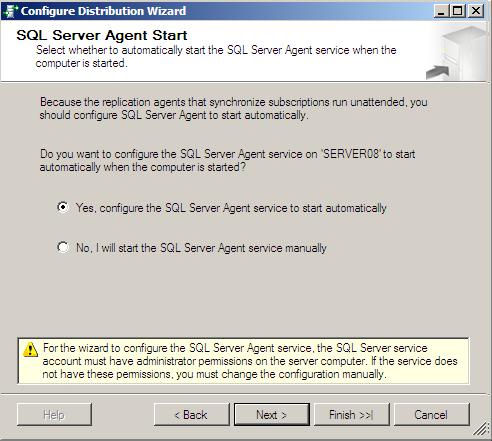
4- now we need to configure Distribution server for both instances. each inctance will have a separate Distribution server .

5- Configure Distribution server for (SERVER08)


6- Configure Distribution server for (SERVER08\INST2)
it's the same with previous step, but with (SERVER08\INST2) instance.

7- Return again to (SERVER08) .


form the local publication folder in the Replication folder . right click and select New Publication.

 select your database from the list


for working with P2P replication you must select transactional replication from the list of publication type


 select your objects that you want to replicate


if you need any filters about your data.


you can select from one or two option in Snapshot Agent , select the first option to create snapshot immediately . if you need to make scheduale you can select the second option also.


your agent need to set security, click on the Security Settings button


set administration account here by 'yourdomain\youraccount' template and set administrator password.


type your publication name.


8- after finish the publication creation, right click on it and then select properties


from subscription options tab, select Allow peer-to-peer subscriptions option and change value from Flase to  True. and then click OK.


9- Return to publication item (MyPublication) again in the first server (Server08),  then right click and select
Configure Peer-To-Perr Topology


this option will let chance to relate multi-nodes together to distribute data between them .


select your publication to configure there topology


this screen will lead to draw all your nodes that wanted to be added and links together. if you select any node you will see ToolTip contain infomarion about this node.

Remember that node mean SQLServer Device or instance that will be found in your Topology .


To add new node in your topology, right click on any empty area inside your topology and then select Add a New Peer Node .


Select the second instance you want to add (or second server) .

after that select your database that will act a replication in the second server (in our example you will select thr recovered database that you do that in previous steps)

if you need SQL Server to link your new node directly with the exist nodes in the topology , check on the option Connect to ALL displayed nodes. and take your new node a new rank by the Peer Originator ID

after that your topology will display your new node with other nodes. you can repeat this step again with new nodes .

all your new nodes will appear in the Log Reader Agent Security window. your need here to set security setting about agent to let replicate use log reader with a wright context security.


Here, set security agent for replicate data distribution. if you need to one context security for all nodes , check on below option.


In this step you need to tell thew wizard how can get data for new peers. if you have a backup, wizard can restore it for you [the second selection] . or you can do that manually (that is our situation) [the first selection]


your can check your affect of your P2P replication by view Replication folder for each instance. you can summarize that each node will act (Publication and Subscriber) for others.


10 - Now you test your replication between your inctances by inserting new records in both tables for each database instance .


In server 'Server08'
insert into dbo.Emp_Tbl values (5,'taha')

In server 'Server08\Inst2'
select * from MySampleDB.dbo.emp_tbl -- your will see new record added

In server 'Server08'

insert into dbo.Emp_Tbl values (5,'taha')

In server 'Server08\Inst2'
select * from MySampleDB.dbo.emp_tbl -- your will see new record added